> ## Documentation Index
> Fetch the complete documentation index at: https://docs.hexinzhandao.com/llms.txt
> Use this file to discover all available pages before exploring further.

# 下载与安装

> 剪映草稿助手（CapcutHelper）用于支持智能体、工作流、技能工具等使用 AI 大模型智能创作和剪辑视频，自动化生成剪映草稿，并下载到自己的电脑版剪映中。

<div style={{ width: '64px' }}>
  <img src="https://mintcdn.com/hezhan/V1PtuOLD0fUvlWqO/images/capcut-helper-logo.png?fit=max&auto=format&n=V1PtuOLD0fUvlWqO&q=85&s=129af6531195738f50d1859a298e83a9" width="256" height="256" data-path="images/capcut-helper-logo.png" />
</div>

## 下载剪映草稿助手

请根据您当前使用的操作系统，选择合适的版本进行下载与安装。

<Columns cols={2}>
  <Card title="Windows" icon="windows" href="https://hezhan-base.oss-cn-beijing.aliyuncs.com/app/CupcutHelper_win64.zip">
    支持操作系统：Windows 10/11
  </Card>

  <Card title="macOS" icon="apple" href="https://hezhan-base.oss-cn-beijing.aliyuncs.com/app/CupcutHelper_macOS.zip">
    最低系统要求：macOS 11.0 (Big Sur) 或更高版本
  </Card>
</Columns>

<Warning>
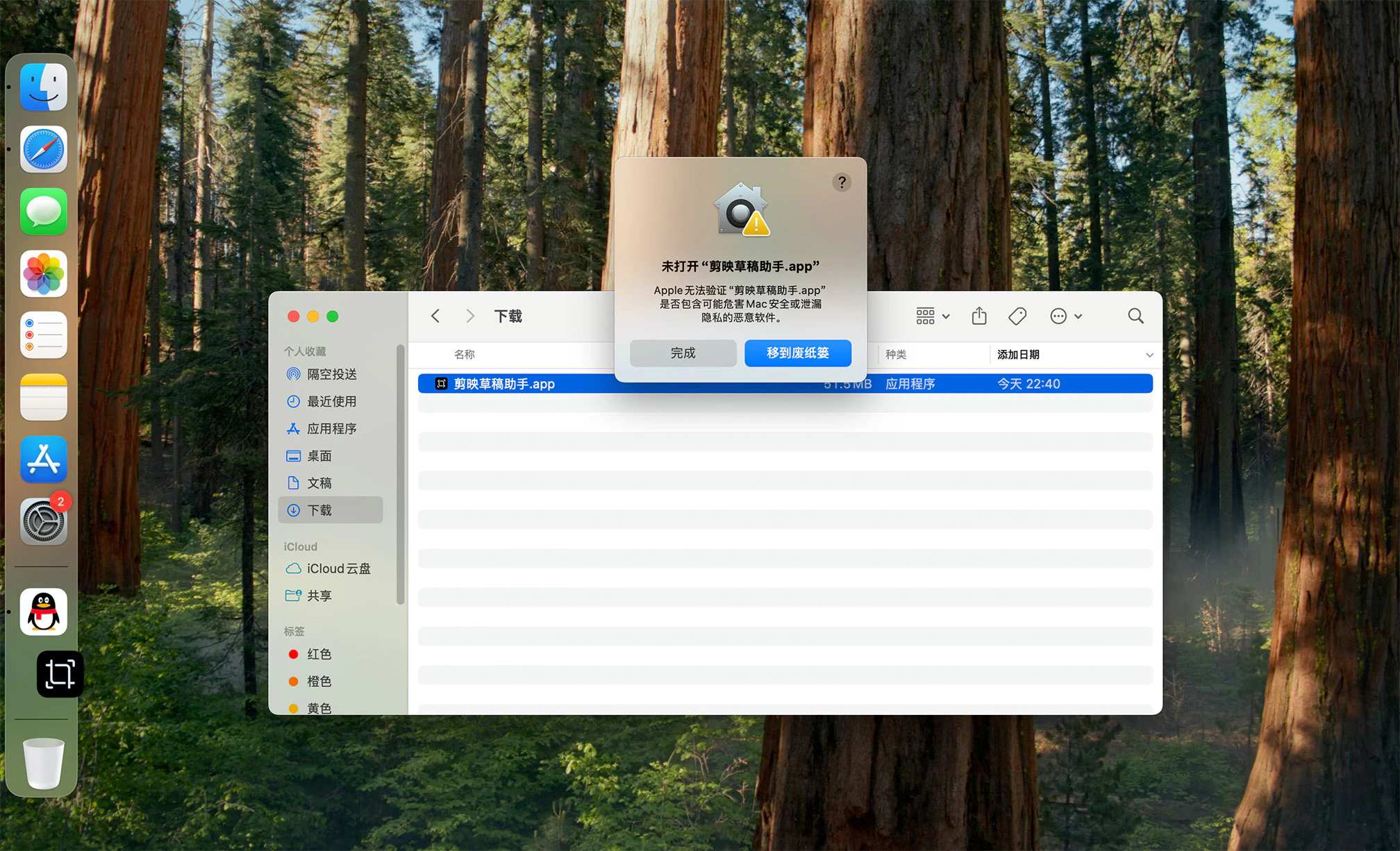
  由于 macOS 版本未在 App Store 上架，下载后需要信任授权才能使用。

  请参考本页的 [安装 macOS 版本](#安装-macos-版本) 部分。
</Warning>

## 安装 Windows 版本

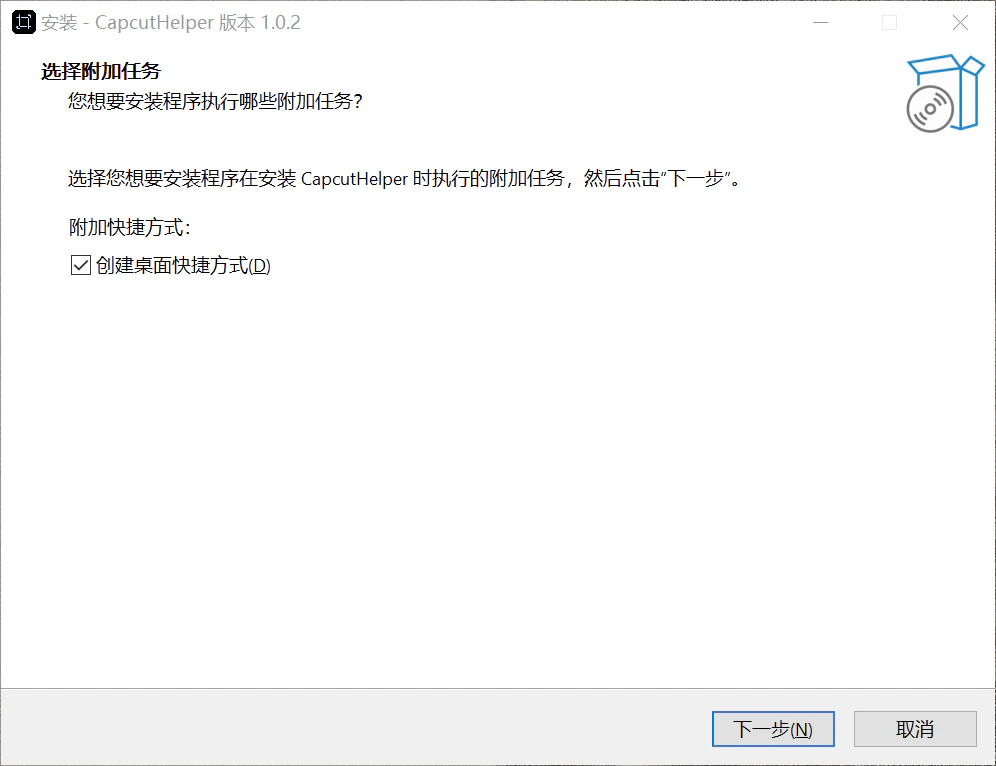
### 第一步：解压下载文件开始安装

下载 Windows 版本到本地，解压缩后，获得 “剪映草稿助手\_安装程序.exe”，双击开始安装。

<img src="https://mintcdn.com/hezhan/Rvo04pALngxfUxuY/images/cch-win-installer-1.png?fit=max&auto=format&n=Rvo04pALngxfUxuY&q=85&s=94664b02fd3ebbb1b6d902d41c1d08a7" alt="" width="996" height="766" data-path="images/cch-win-installer-1.png" />

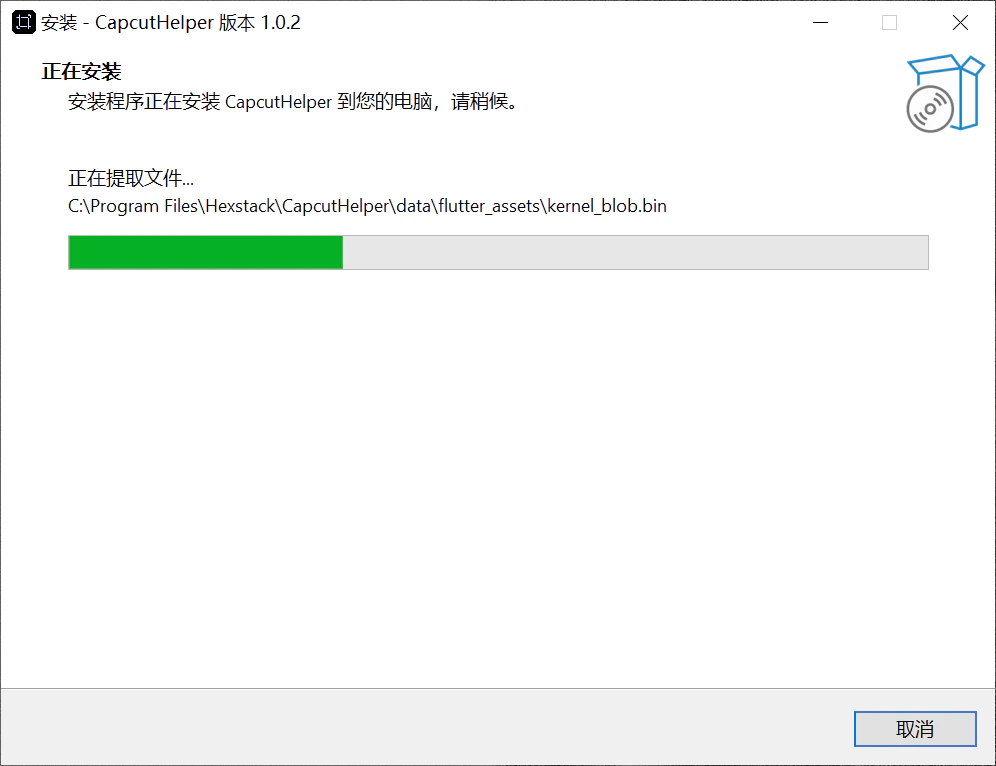
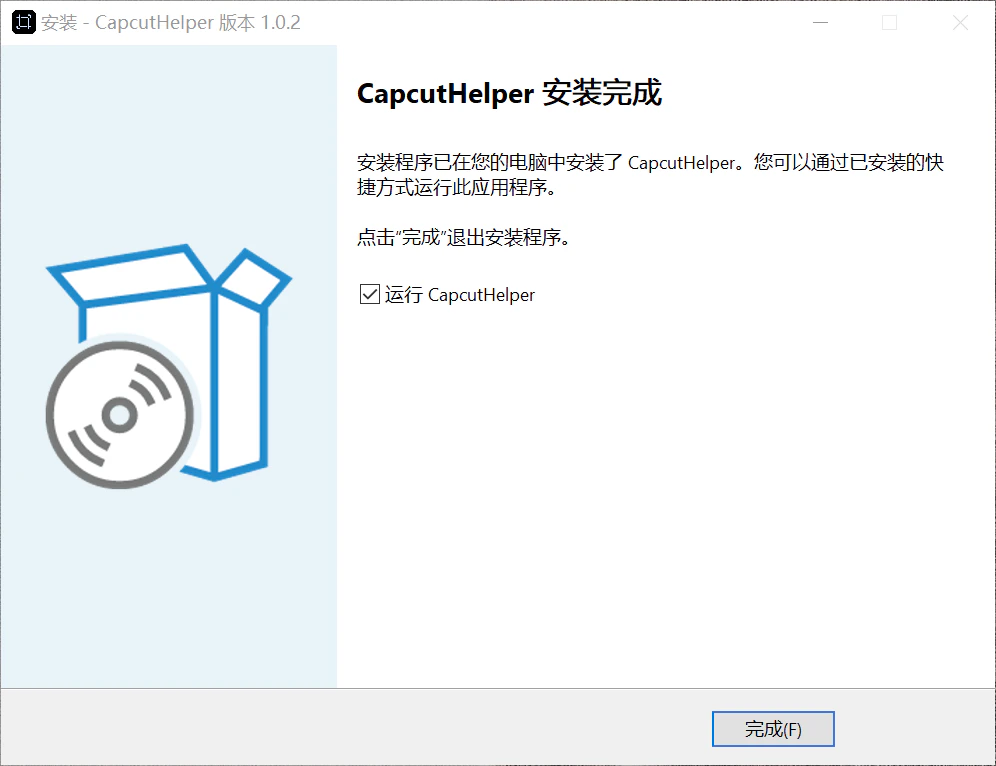
### 第二步：点击下一步直到安装完成

<img src="https://mintcdn.com/hezhan/9wZz6Rhv7FFjJG9e/images/cch-win-installer-2.png?fit=max&auto=format&n=9wZz6Rhv7FFjJG9e&q=85&s=3aaac04b40d7b0233e5cde28dc2c699d" alt="" width="996" height="766" data-path="images/cch-win-installer-2.png" />

<div style={{ marginTop: '2rem' }}>
  <img src="https://mintcdn.com/hezhan/9wZz6Rhv7FFjJG9e/images/cch-win-installer-3.png?fit=max&auto=format&n=9wZz6Rhv7FFjJG9e&q=85&s=c94c39c8dfad3ad9e0ce3028ee6b133a" width="996" height="766" data-path="images/cch-win-installer-3.png" />
</div>

## 安装 macOS 版本

由于本工具未在 App Store 上架，首次运行可能会提示 “Apple 无法验证”。您需要跟随以下几步操作，开启一次性 “信任授权” 即可正常运行。

<img src="https://mintcdn.com/hezhan/jTULzYpD6jMmvysK/images/cch-mac-installer-err.jpg?fit=max&auto=format&n=jTULzYpD6jMmvysK&q=85&s=85bf200fb1f2ddef4bcbdc456070347c" alt="" width="2016" height="1226" data-path="images/cch-mac-installer-err.jpg" />

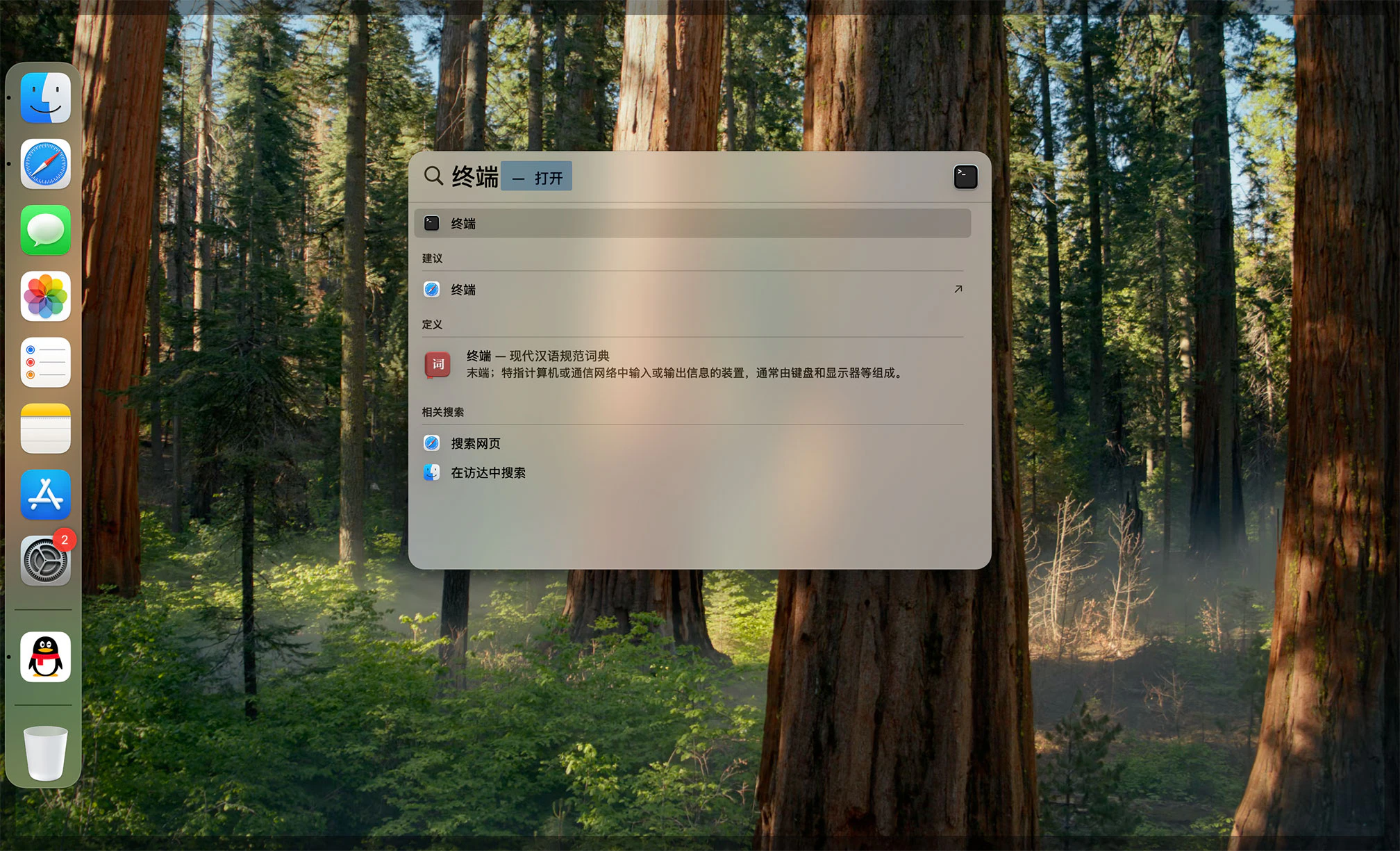
### 第一步：打开 Mac【终端】工具

<Steps>
  <Step title="打开 Mac 搜索功能">
    使用快捷键 <kbd>Command ⌘</kbd> + <kbd>Space</kbd> 调出搜索框。
  </Step>

  <Step title="快速启动终端">
    在搜索框中输入 `终端`，然后按下 <kbd>Enter</kbd> 键。
  </Step>
</Steps>

<img src="https://mintcdn.com/hezhan/jTULzYpD6jMmvysK/images/cch-mac-installer-1.jpg?fit=max&auto=format&n=jTULzYpD6jMmvysK&q=85&s=76b91a47980721d38523d782bf7c1d9e" alt="" width="2016" height="1225" data-path="images/cch-mac-installer-1.jpg" />

### 第二步：复制命令到【终端】执行

<Steps>
  <Step title="复制这行命令">
    ```bash theme={null}
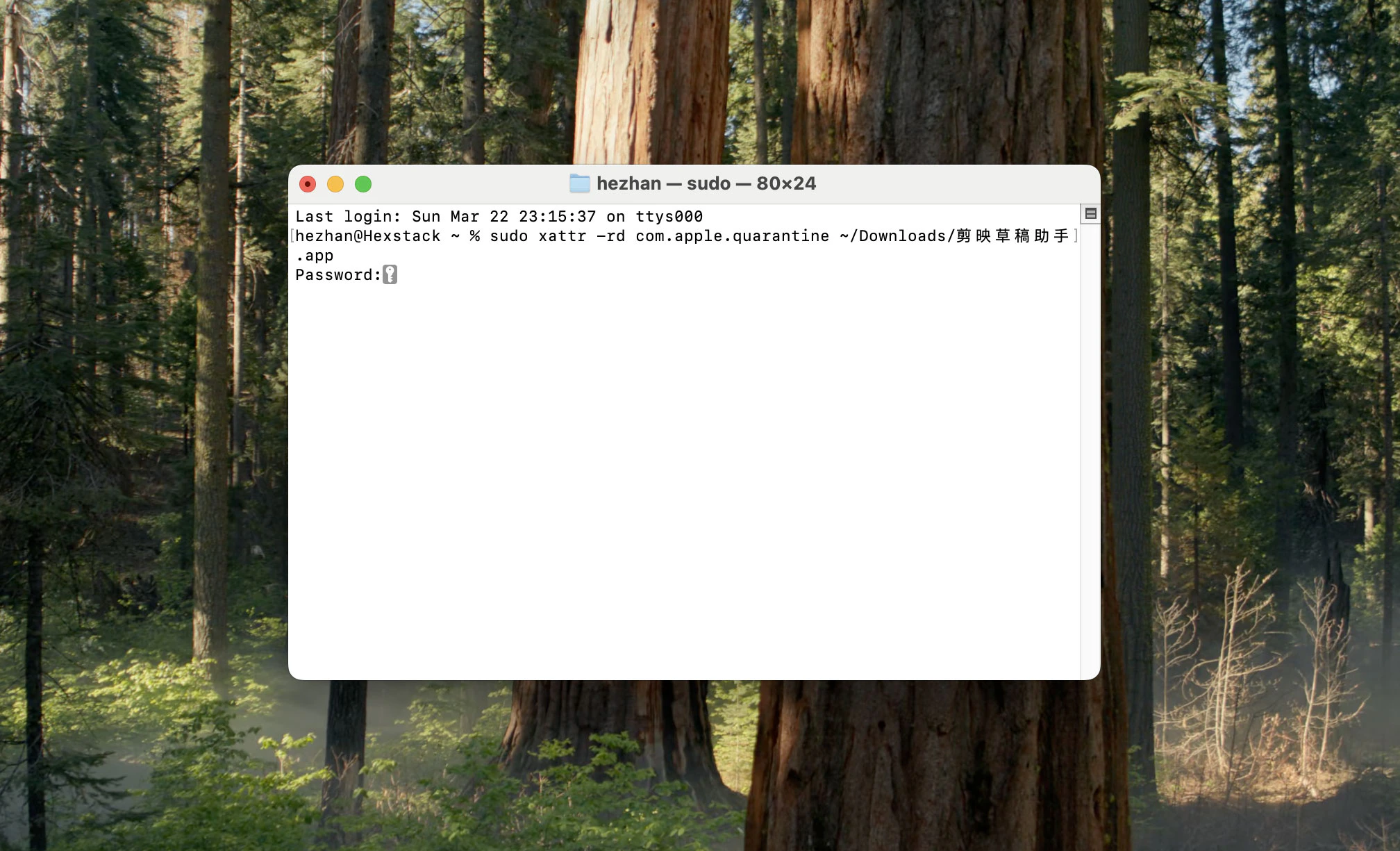
    sudo xattr -rd com.apple.quarantine ~/Downloads/剪映草稿助手.app
    ```

    <Tip>
      默认下载在 “Downloads” 文件夹中，如果您更改了默认文件夹，请同时更改命令行中的路径。
    </Tip>
  </Step>

  <Step title="粘贴到终端，回车执行">
    在终端窗口中点击右键，选择 `粘贴` 即可将命令粘贴到终端里，然后按下 <kbd>Enter</kbd> 键执行。
  </Step>

  <Step title="按提示输入开机密码">
    终端提示 `Password:` 时，输入开机密码 ( 输入时屏幕不显示字符 )，再次按下 <kbd>Enter</kbd> 键。

    <Tip>
      如果系统询问 “是否允许访问下载文件夹”，点击允许即可。
    </Tip>
  </Step>

  <Step title="完成信任授权，可正常使用工具" />
</Steps>

<img src="https://mintcdn.com/hezhan/ukDhBw0i9JgbobU6/images/cch-mac-installer-2.jpg?fit=max&auto=format&n=ukDhBw0i9JgbobU6&q=85&s=a5be586050424035d702218c81155ce6" alt="" width="2016" height="1225" data-path="images/cch-mac-installer-2.jpg" />